Configure Cloud Models
FlowDown supports any OpenAI-compatible HTTPS service (chat completions and responses). The app ships with dynamic templates—including pollinations.ai free models—so you can start chatting immediately or pull preset configs as needed.
Fetch the latest templates
- Open Settings → Models.
- Tap the + in the top-right corner.
- Under Cloud Model, pick pollinations.ai (free) to fetch the latest anonymous text models with the correct endpoint and context, or choose Empty Model to start from scratch.
- To reuse saved profiles, select Import Model → Import from File and load an exported
.fdmodelor.plist.
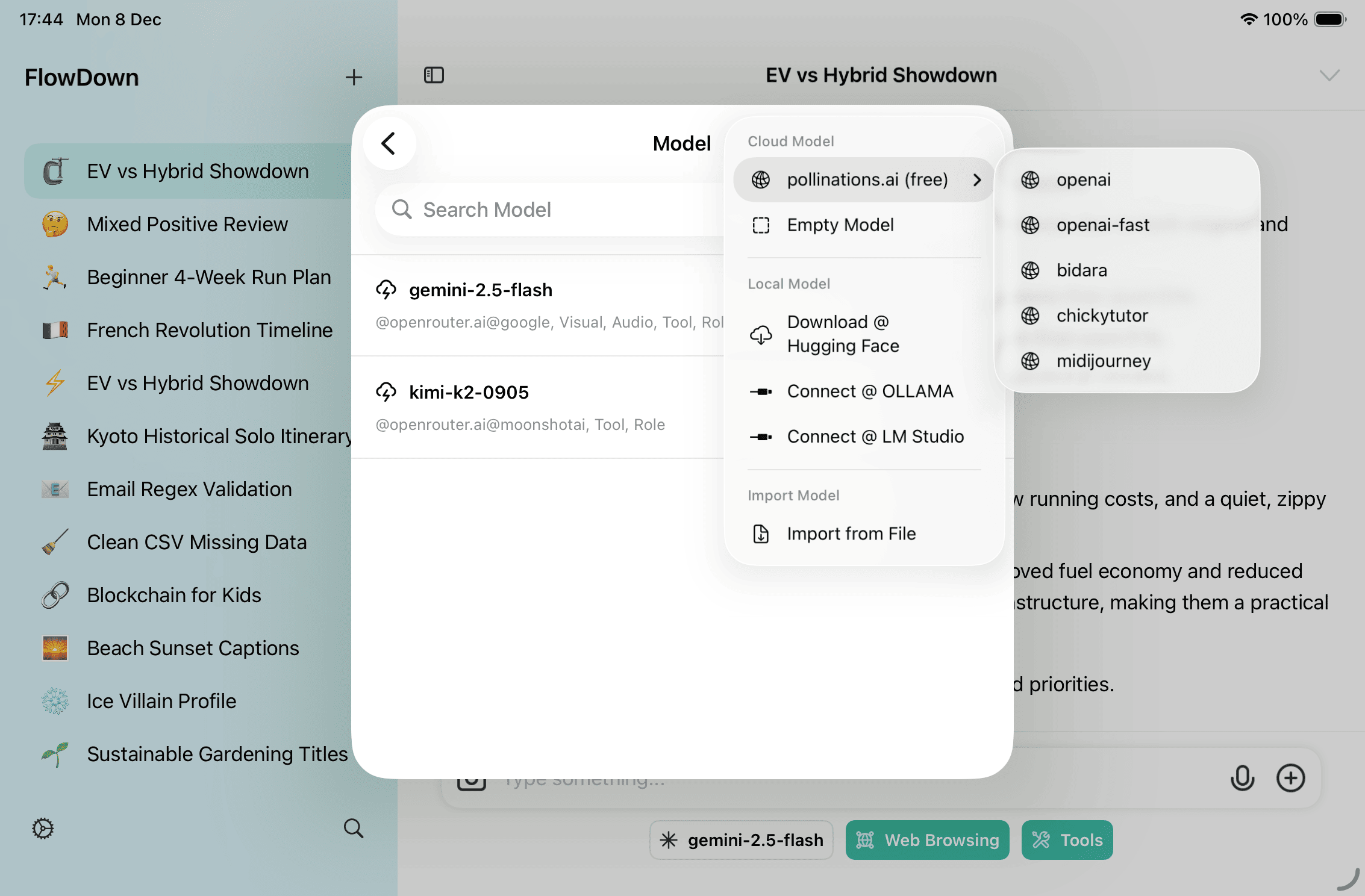
Open the Cloud Model menu any time to refresh the pollinations.ai list or add a new blank profile; the list loads on demand.
Connect your provider
- Create a blank profile or open an existing one.
- Enter the full inference URL (for example,
https://api.example.com/v1/chat/completionsor/v1/responses). FlowDown auto-detects and sets Content Format; switch it manually if detection is wrong. - Set the model identifier. Tap the field to Select from Server, which calls the model list endpoint (defaults to
$INFERENCE_ENDPOINT$/../../models; adjust if your provider uses a different path). - Provide your provider credential/workgroup token (sent as a Bearer Authorization header) and any required headers. Custom headers can override Authorization for special auth schemes.
- Add JSON in Body Fields. The quick menu inserts reasoning toggles (
enable_thinking/reasoningwith budgets), sampling parameters, input/output modalities, or provider flags. - Toggle capabilities (Tool, Vision, Audio, Developer role), set context length and nickname, then save.
Tip: In the editor,
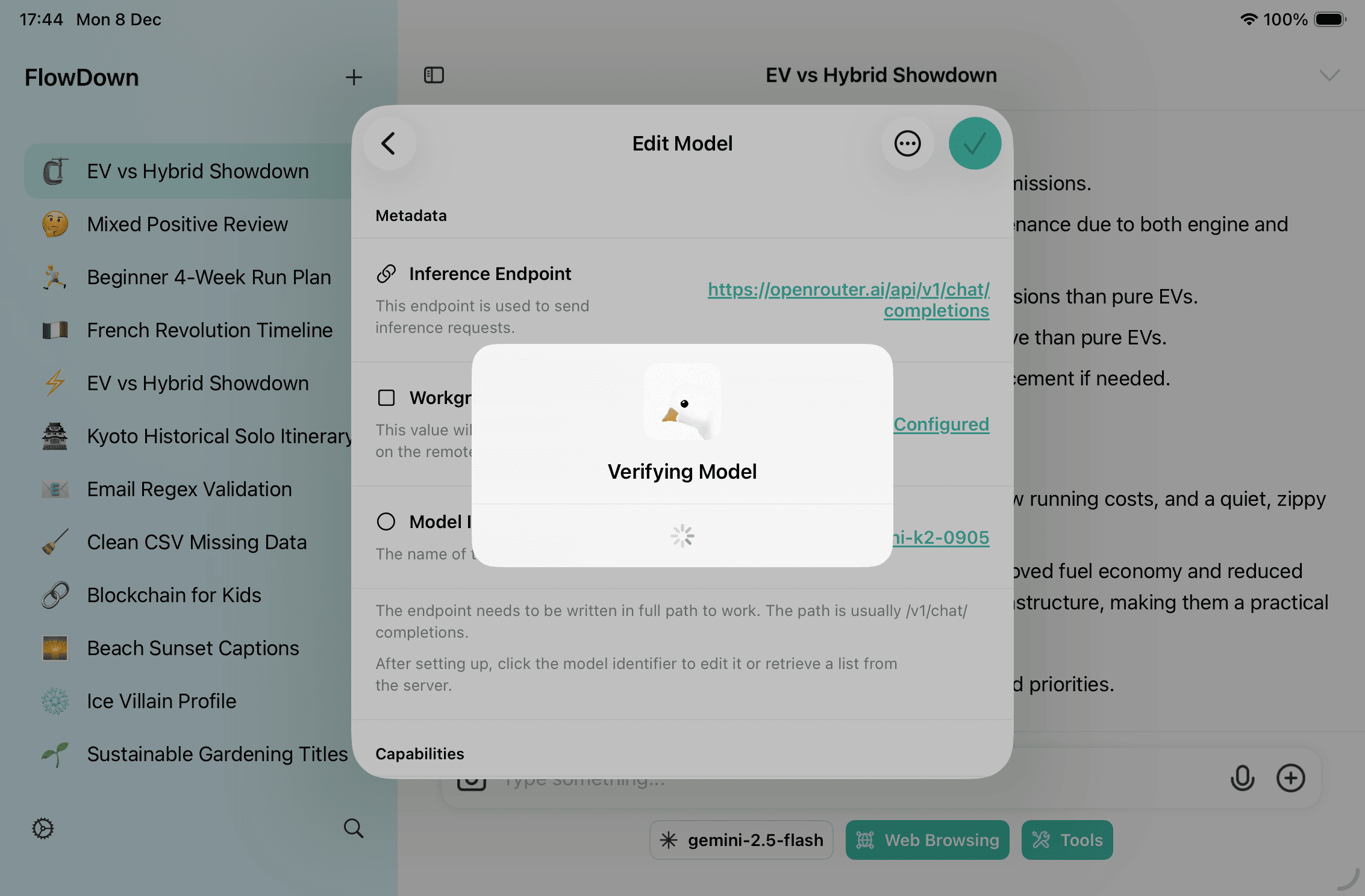
⋯lets you Verify model (connectivity), Duplicate, or Export model for version control.
Best practices
- Endpoint & format: keep the inference URL aligned with Content Format (chat completions vs responses) to avoid HTTP errors.
- Model list: configure the model list endpoint and use Select from Server instead of typing IDs.
- Pollinations: free models are rate/region limited; connect your own provider if they are unavailable.
- Body fields: add provider-specific keys (reasoning budgets,
top_p/top_k, modalities, etc.) via Body Fields, ensuring valid JSON. - Backups: model definitions sync with iCloud and workspace exports. Before major edits, run Settings → Data Control → Export Workspace.
Advanced: Custom / Enterprise Setup
For private deployments or bespoke gateways. Connect only trusted endpoints—misconfigurations can leak data or incur costs.
-
Create: Settings → Models → + → Cloud Model → Empty Model. Edit inline or export
.fdmodel, tweak externally, then re-import. -
Key fields (unused fields can be empty strings/collections):
Key Purpose endpointInference URL such as /v1/chat/completionsor/v1/responses; must matchresponse_format.response_formatchatCompletionsorresponses, aligned with the endpoint.model_identifierModel name sent to the provider. model_list_endpointList endpoint (defaults to $INFERENCE_ENDPOINT$/../../models) for Select from Server.token/headersAuth info; custom headers can override the default Authorization: Bearer ....body_fieldsJSON string merged into the request body—use it for reasoning toggles, budgets, sampling keys, modalities, etc. capabilities/context/name/commentDeclare capabilities, context window, display name, and notes to drive UI toggles and trimming. -
Verify & audit: after saving, run
⋯ → Verify model; audit calls in Settings → Support → Logs. Remove/disable unused configs to avoid accidental calls.