Chat Templates
Chat templates seed new conversations with consistent system prompts and a recognizable emoji avatar. Each template stores its name, emoji, system prompt, and whether it inherits the app-level prompt. Templates do not capture tool selections, starter messages, or model preferences.
Create or Import
- Generate from an active conversation: Open the conversation menu and choose Generate Chat Template. FlowDown uses the current chat model to extract a name, emoji, and prompt from recent exchanges (needs at least one user and one assistant message) and saves it to Settings → Models → Chat Template.
- Create from scratch: Go to Settings → Models → Chat Template and tap + → Create Template to start with a blank template.
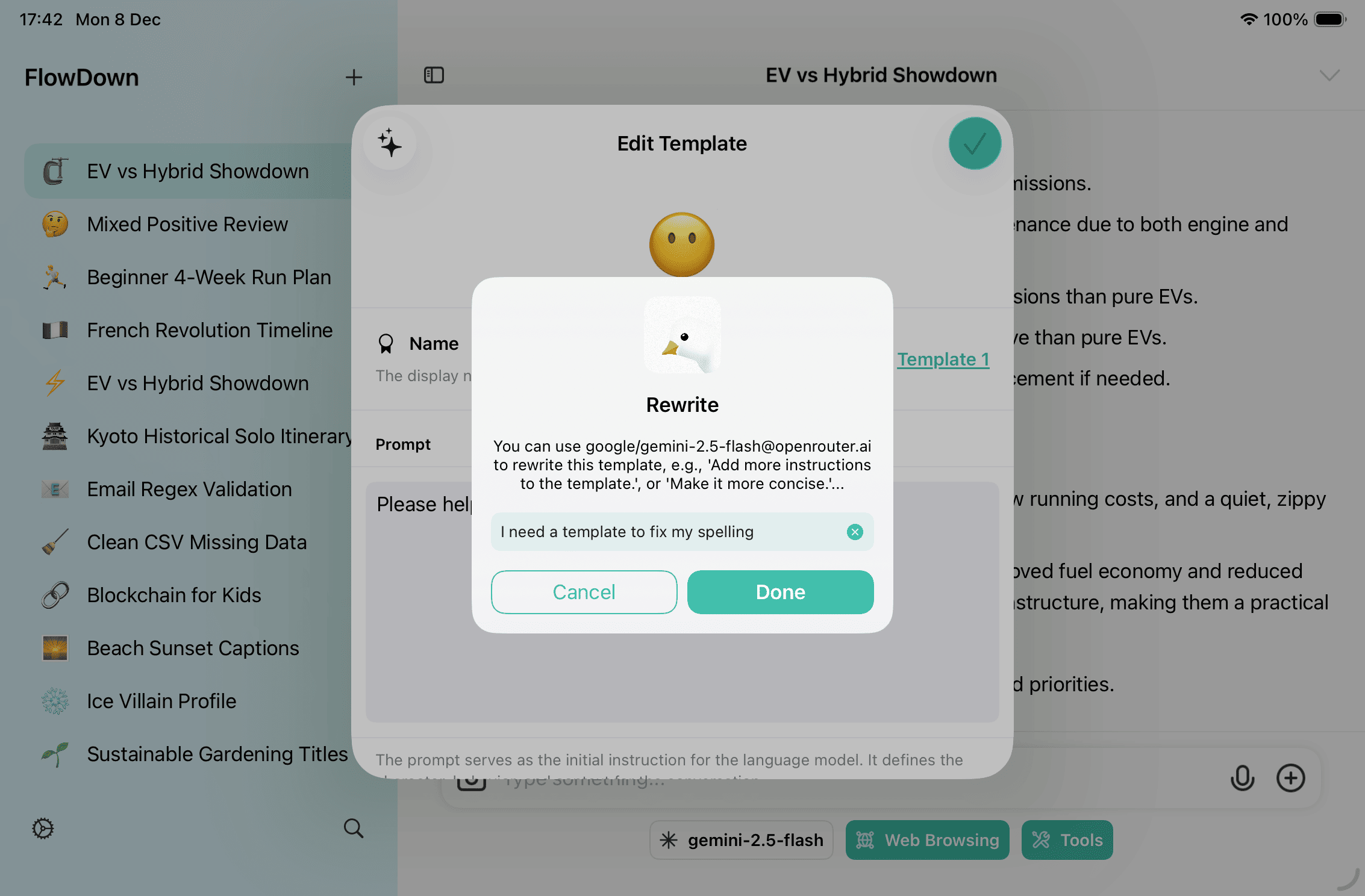
- Rewrite an existing template: In the template editor, tap the sparkle button to have the default chat model rewrite the prompt based on your instructions.
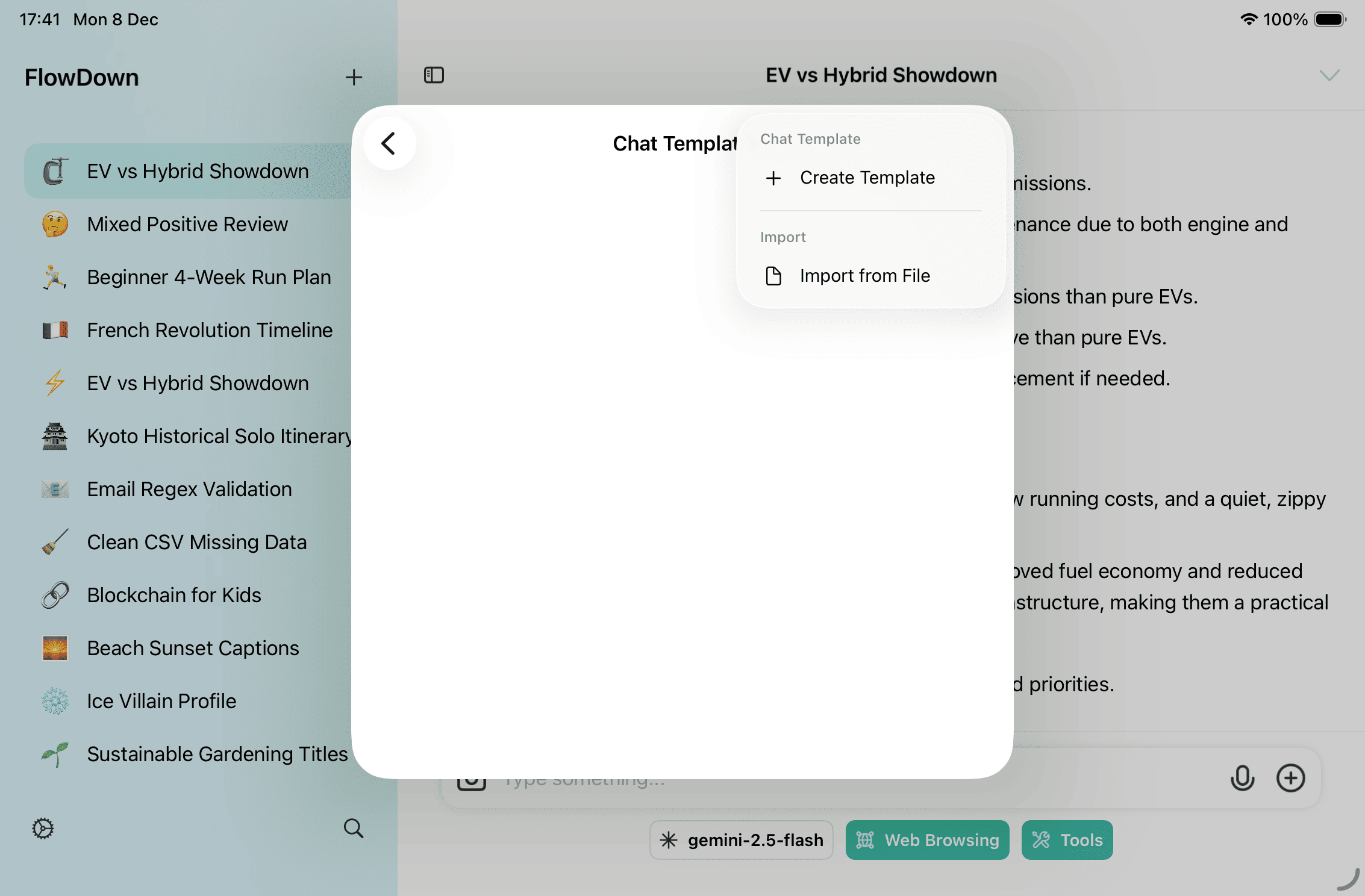
- Import: In the template list, choose + → Import from File to load
.fdtemplatefiles (supports multi-select). You can also drag and drop.fdtemplatefiles into the list or open them from Finder/Share to import; templates with the same identifier are replaced.
Edit and Manage
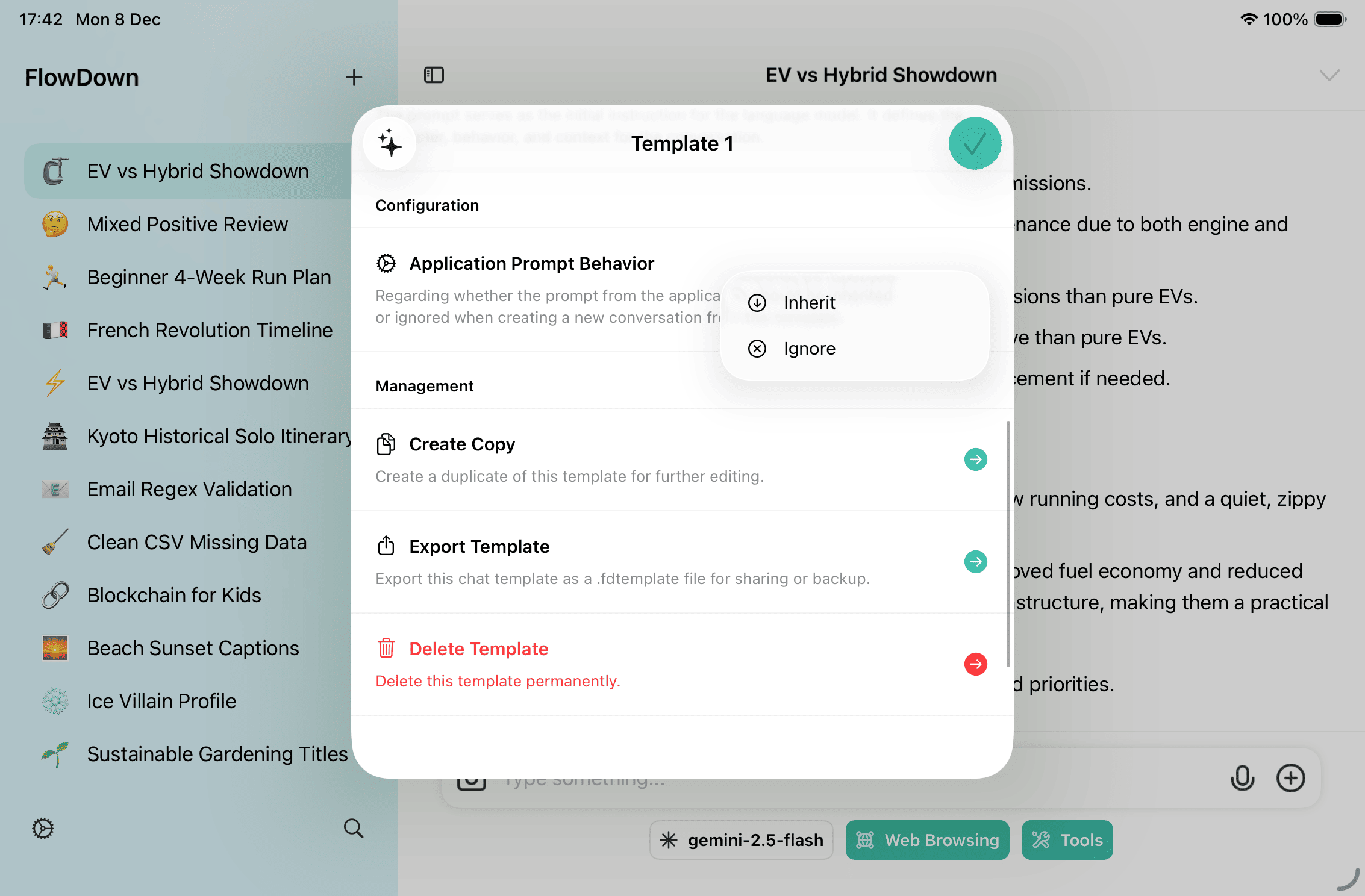
- Inside a template, change the emoji avatar, name, prompt, and whether it inherits the app-level prompt. Save with the checkmark.
- Use Create Copy to duplicate a template, Export Template to share a
.fdtemplate, and Delete Template to remove it. Templates are stored locally and can be reordered by dragging in the list; swipe or context menus also delete entries.
Use Templates
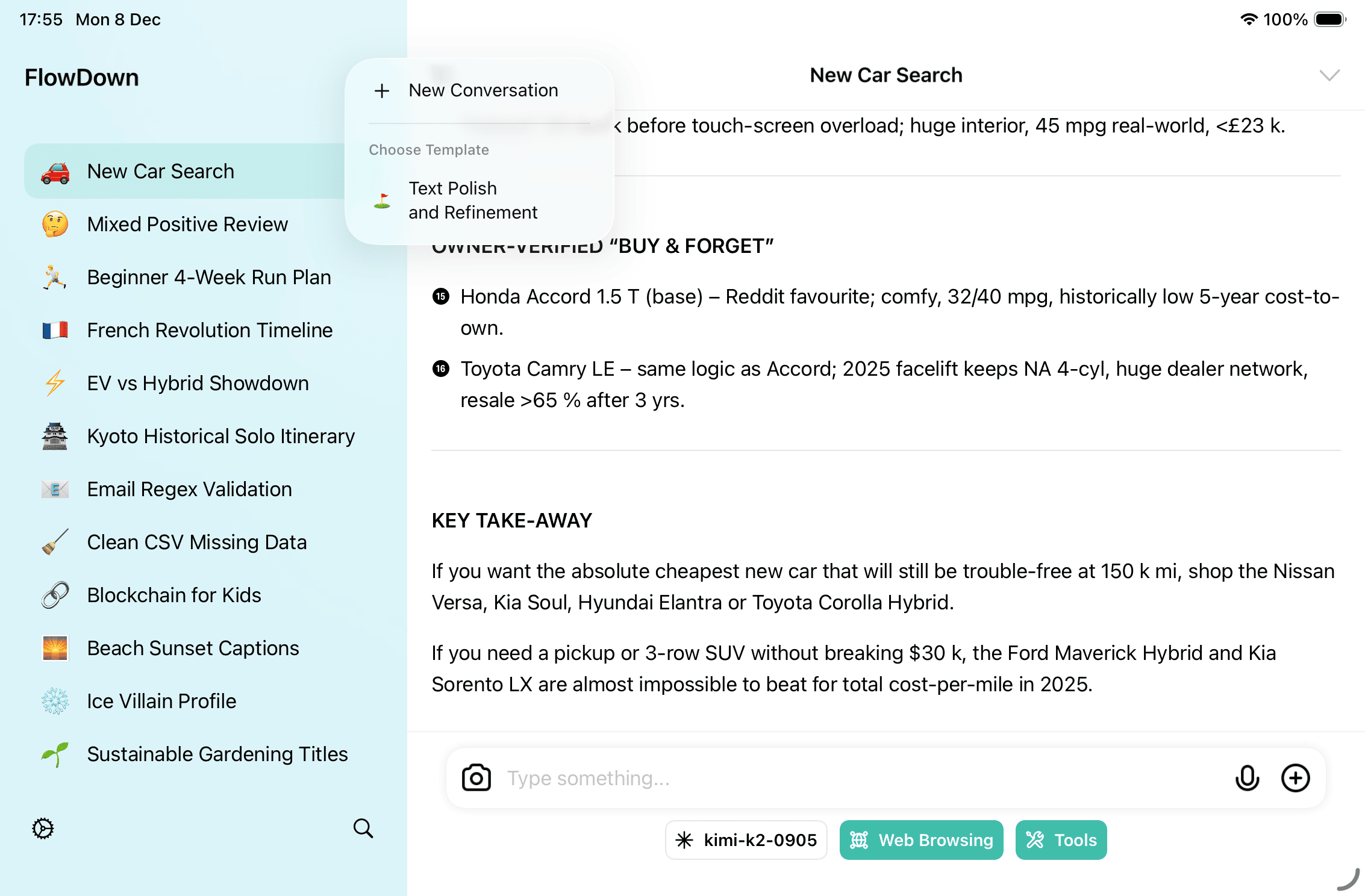
- Start a conversation via + → Choose Template in the new chat menu (including the floating New Chat button). On macOS, the app menu also offers “New Chat With Template.”
- Applying a template sets the conversation icon and name, writes the template prompt as a system message, and—if you choose Ignore App Prompt—first clears the default system prompt and notes which template supplied it.
Tips
- Keep prompts concise so they stay reusable across models.
- Pair templates with Inference Configuration to pre-allocate reasoning budgets when needed.