Tools & Automation
Tool-capable models can use built-in tools and MCP extensions to enrich context or take actions. Enable “Skip Tool Confirmation” only when you fully trust the model and endpoint.
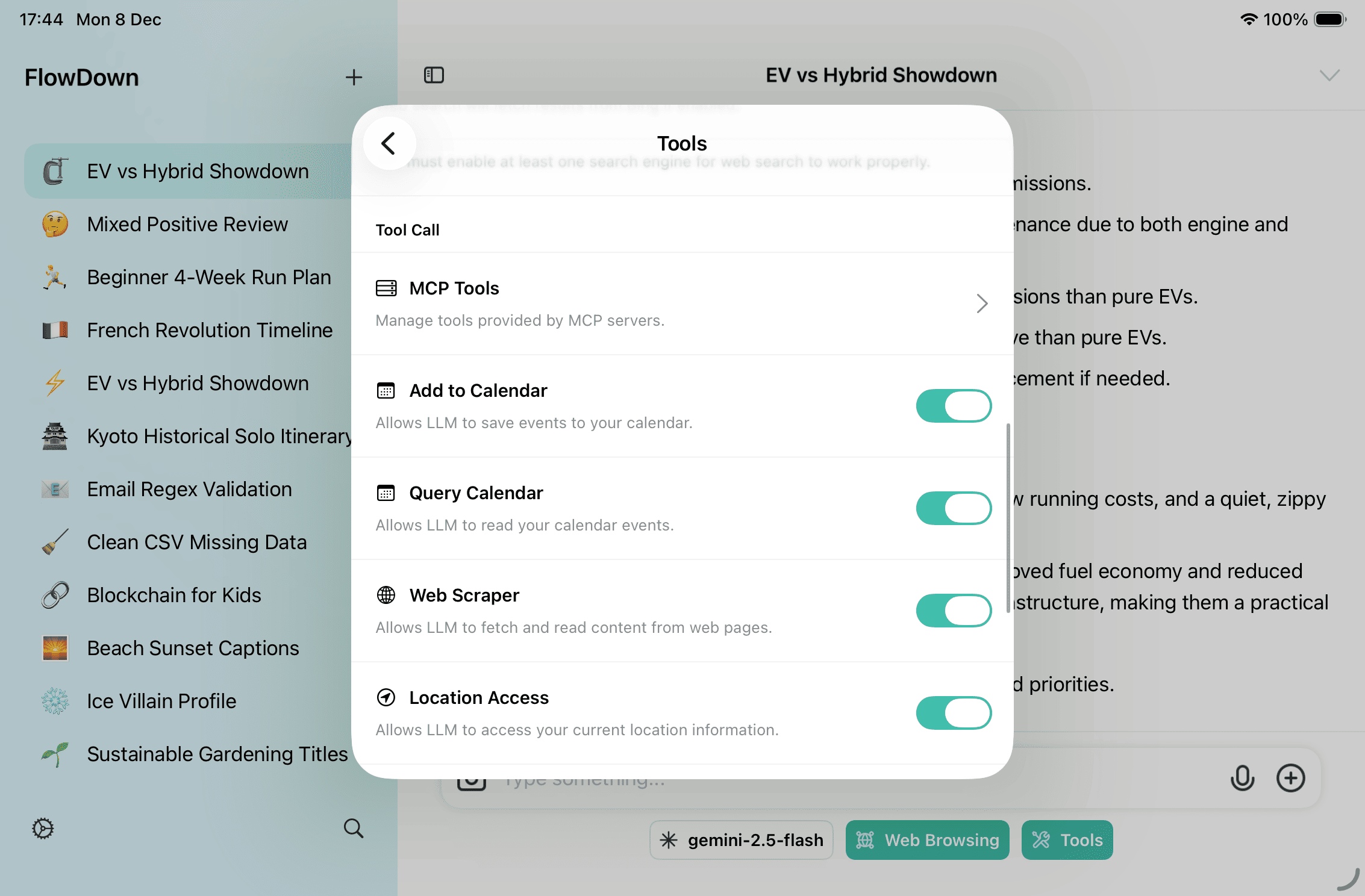
Built-in tools
| Group | What it does |
|---|---|
| Calendar | Read availability, suggest times, create/update events. |
| Web search/scraper | Search or fetch pages and return structured content — see Web Search. |
| Location | Current city/coordinates or reverse geocoding (iOS/iPadOS). |
| URL metadata | Expand titles, descriptions, and favicons. |
| Memory | Store, recall, update, or delete long-term memories. |
| MCP | Connect external MCP servers to extend tools — see MCP Integration. |
How to enable
- In conversation: the Tools toggle appears when the model supports tool calls; long-press to batch-toggle built-ins and MCP. Web Browsing controls whether the current chat may go online.
- Global: under Settings → Tools, manage built-ins, MCP servers, and search engines; turn on Skip Tool Confirmation only if you need full automation.
Run flow
- The model emits a function name with JSON args (including dynamic MCP tools).
- You confirm, then it runs; with automation on, it runs immediately.
- Results are written into the conversation and shown live in the reasoning panel; chaining is supported.
Multimodal & attachments
- Supports text/Markdown, PDF, common images, audio (auto-transcoded to WAV); import via paperclip, drag-and-drop, or paste.
- Media returns only when the model declares matching capabilities; very large attachments can slow sync.
For scenarios: calendar flow in Calendar Workflow, attachments in Attachments, memory in Memory Management, and shortcuts in Apple Shortcuts.***