MCP Tools
The Model Context Protocol (MCP) connects FlowDown to external copilots, file systems, and APIs. MCP runs on FlowDown’s tool-calling pipeline, so confirmations, logging, and the optional “Skip Tool Confirmation” toggle behave the same as other tools.
::: warning Only connect to MCP servers you trust—they can receive the full conversation context and attachment metadata. :::
Add & Configure Servers
- Open Settings → Tools → MCP Servers, then tap + → Create Server (HTTP/HTTPS only).
- Enter the Endpoint (usually ending with
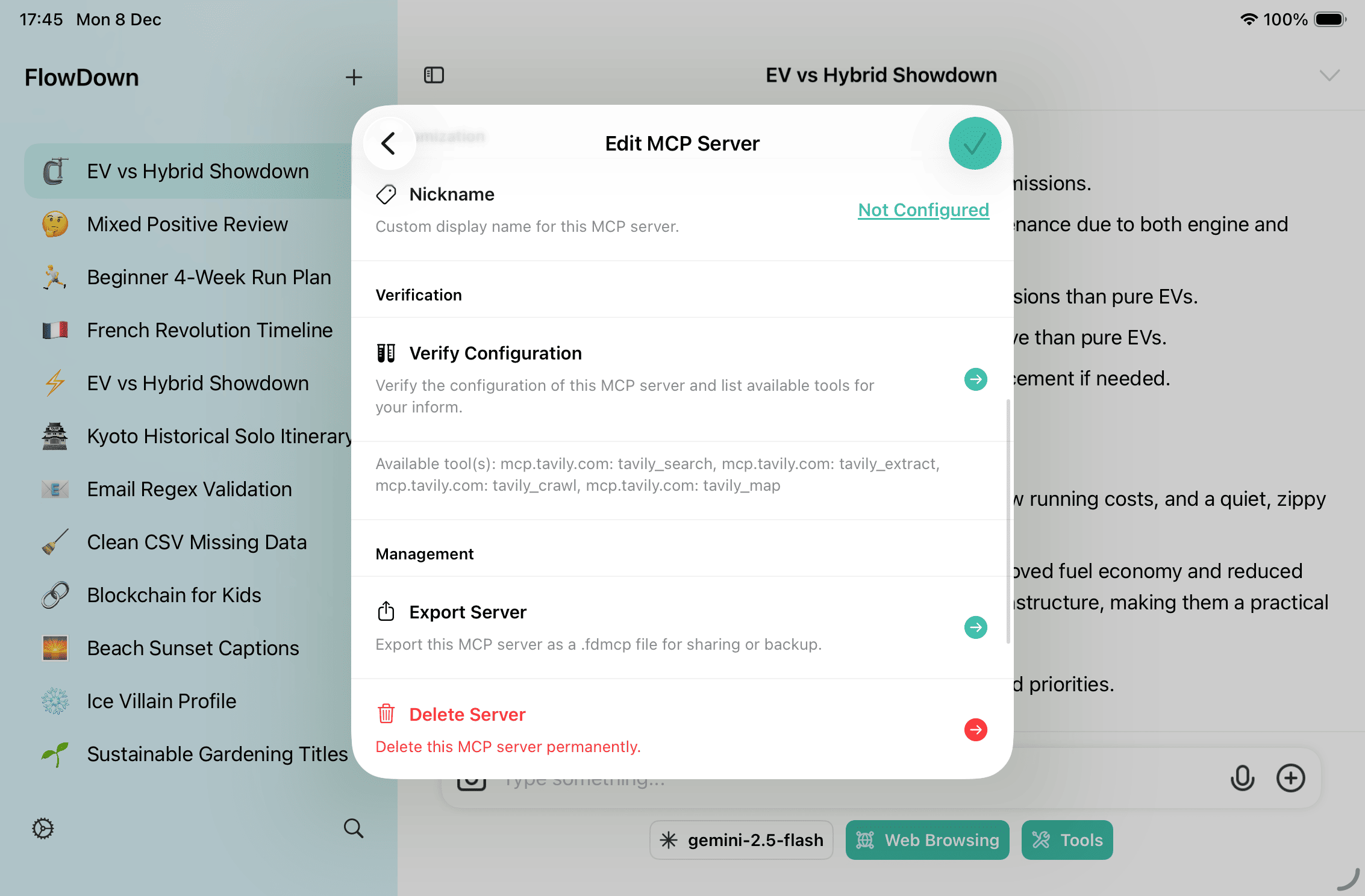
/mcp/) and any Headers (JSON map for auth/tenant tokens sent with every request). Add a Nickname for display; otherwise FlowDown shows the host name. Transport is fixed to Streamable HTTP. - Turn on Enabled to auto-reconnect and sync tools; turn it off to pause the server without deleting it.
- Tap Verify Configuration to handshake and list available tools. After verification, the list shows Connected / Connecting / Disconnected.
Import / Export
- Export from Management → Export Server in server details or from the row context menu. FlowDown creates a
.fdmcpfile you can share or back up. - Import via + → Import from File, by dragging a
.fdmcpinto the list, or by opening a.fdmcpfile/URL in FlowDown (for example from Files or AirDrop).
Using MCP Tools in a Conversation
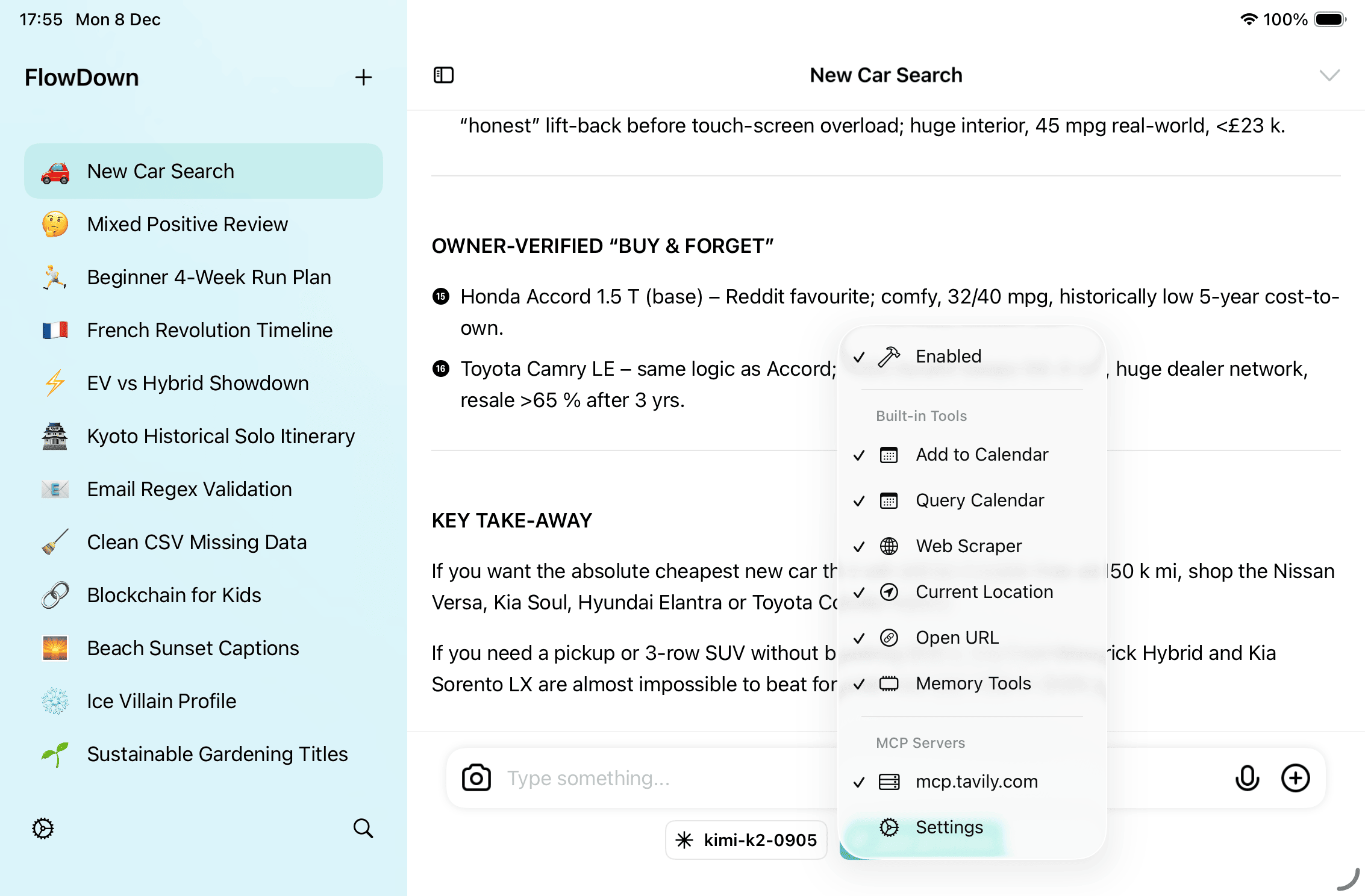
- Enabled servers reconnect automatically during conversation prep; their tools are appended when the chosen model supports tool calls.
- When a model requests an MCP tool, FlowDown shows a confirmation alert with the server and tool names plus the tool description. The global Skip Tool Confirmation toggle (Settings → Tools) also applies.
- Approve to run the tool. Results appear in the reasoning panel: text is inlined, and image/audio outputs are attached so you and the model can inspect them. Errors are logged.
- Status badges in MCP settings reflect the live connection; re-run Verify Configuration if a server looks stuck.
Example scenarios
- “List the files in my project” → file-system MCP server.
- “Summarize the latest pull requests” → GitHub MCP server.
- “Send an email to the team” → mail MCP server.
Supported Transports
- HTTP / HTTPS streaming only. App sandboxing blocks stdio transports, and SSE support is deprecated, so neither is available.
Best Practices
- Review the server’s privacy scope and credentials before enabling; keep secrets in headers minimal and rotate them regularly.
- Disable servers when not needed to avoid background reconnections.
- Audit tool calls from Settings → Support → Logs and keep only the servers required for current conversations.
Advanced: edit .fdmcp manually
You can export a .fdmcp file, edit a few fields, and re-import:
name: custom nickname; if blank, FlowDown falls back to the host name.timeout: request timeout in seconds (integer).
After editing, import via MCP Servers → + → Import from File or open the file directly in FlowDown, then run Verify Configuration to validate.