Adding Attachments
Attachments let you add documents, screenshots, audio clips, and notes to a conversation. FlowDown processes each file on-device and sends structured context to the model together with your prompt.
Availability
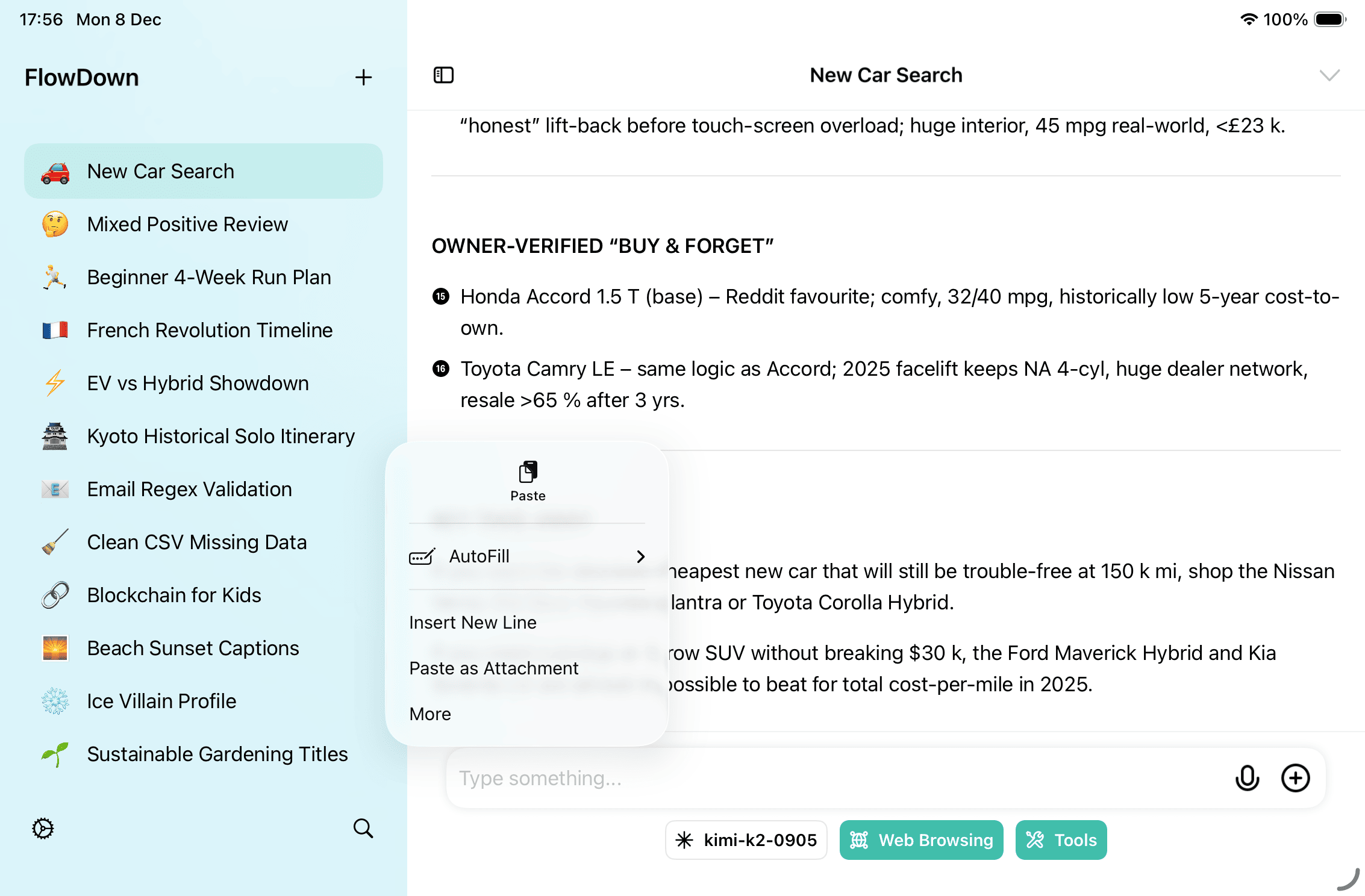
- Tap the paperclip above the composer to manage attachments, or drag and drop/paste files directly.
- Supported formats: plain text/Markdown, PDF, common images (PNG/JPEG/WebP/HEIC), and audio (m4a/wav; other audio is transcoded automatically). Unsupported formats are skipped.
- Attachments work with every model. Choose a Visual model for images and an Auditory model for audio clips.
Processing Pipeline
- Import and archive – Extract text, alt text, and metadata locally by file type. PDFs import as text or convert to per-page images; audio is transcoded to a compact WAV.
- Visual preprocessing (if needed) – If an image lacks a description and recognition is on, FlowDown asks the Auxiliary Visual Model to describe it, then runs on-device OCR/QR detection and saves the results. When the current model already supports vision, you can enable Settings → Inference → Visual Assessment → Skip Recognition If Possible (on by default). Turn it off if you might switch to text-only models and need fallbacks.
- Context assembly – Each attachment becomes a user message before your prompt:
- Text/PDF/web:
[filename]plus extracted text. - Images: visual models receive the image and any description; non-visual models receive only the description, and images without text are skipped.
- Audio: audio-capable models receive a base64 WAV plus the description; other models use your description or note that the audio was skipped.
- Text/PDF/web:
- Send to the model and tools – FlowDown streams the prompt and attachments (including earlier turns) to the selected model; tools see the same context.
Use Attachments Effectively
- Add only files relevant to the current question; large or unrelated attachments raise token costs and distract the model.
- For multi-page PDFs, mention page numbers or sections in your prompt.
- If you may switch to non-visual models, turn off “Skip Recognition If Possible” to generate description fallbacks.
- When comparing multiple files, include them in one message so they share context.
- If a reply seems off, remind the model to review the attachment section or resend with clearer instructions.
Troubleshooting
- Upload failed: Usually due to limited storage or unsupported formats; convert to PDF or Markdown and retry.
- Sync differences: Run Data Control → Full Refresh from iCloud to resync.
- Privacy review: Attachments leave the device only when you use cloud models, tool calls, or iCloud sync.